
 squero-studio-mx
Editor and debugger#
The script editor shares its core with Squero Studio OM and adds Julia-specific syntax highlighting, inline answer badges, completions, cell execution, and a visual debugger.
Inline answers and completions#
Inline answer badges appear to the right of evaluated lines so you can see types, shapes (
60 × 60), scalar results, and→ figure/→ optimizejump badges without cluttering the console. Clicking→ figureswitches the stage to the figure created on that line.Autocomplete offers live workspace variables (
var), Julia functions (fn), keywords (kw), snippets (snp), and LaTeX math symbols (λ).Unicode symbols: type a LaTeX token such as
\pi,\zeta, or\omegaand press Tab to turn it intoπ,ζ, orωin both the editor and the console.Habit linter: a gutter lint rule flags MATLAB-style
%comments (Julia comments start with#).
Cells, lines, and read-only examples#
Divide a script into sections with
#%%comments and pressCtrl/Cmd+Enterto run only the cell containing the cursor.Press
Shift+Enterto run only the current line or selected text.When you open a shipped tutorial script (via
open_example(...)), the editor displays aread-onlybadge so the built-in curriculum stays intact. Click Copy to workspace in the editor header whenever you want an editable copy in your workspace folder.
Visual debugger#
Switch the right pane to debug (or use View ▸ Debug tab) to step through Julia scripts and functions:
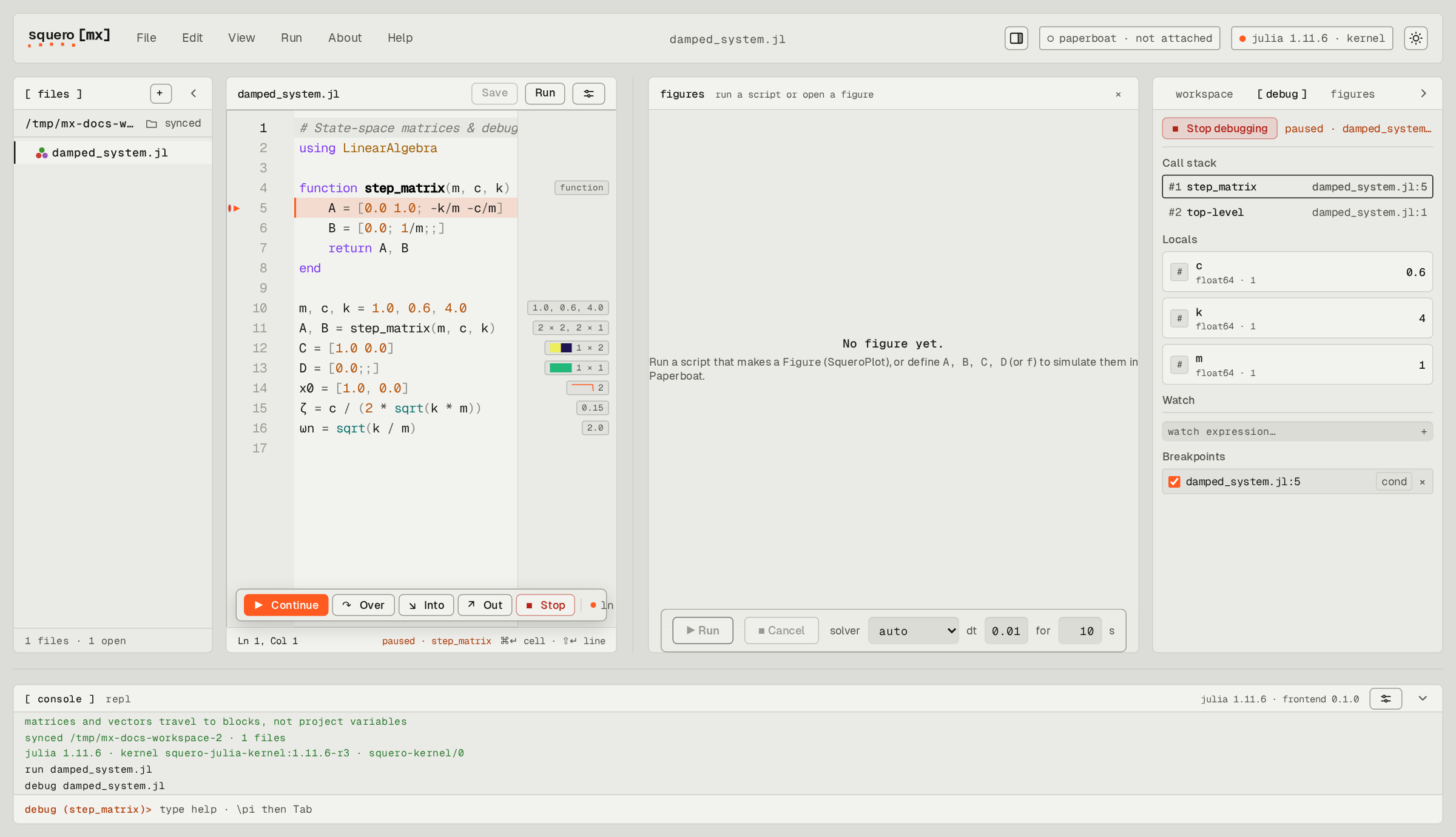
Set breakpoints: click the line-number gutter next to any executable line to toggle a breakpoint. In the Breakpoints list on the right, click
condto attach a Julia boolean condition or use the checkbox to disable a breakpoint temporarily.Start debugging: click Start debugging in the debug tab (or Run ▸ Start debugging).
Control execution: when paused on a line, a debugger dock appears above the editor’s run strip with:
Continue (F5)
Step Over (F10)
Step Into (F11)
Step Out (Shift+F11)
Stop (Shift+F5)
Inspect state: while paused, Call stack lets you click between frames, Locals shows each variable in the selected frame, Watch evaluates custom Julia expressions on every stop, and the console prompt changes to
debug (<frame>)>so you can run expressions in that scope.
Editor settings and themes#
Click the sliders button in the editor header to configure theme (ui follows light/dark mode,
or pick paper, ink, sepia, harbor, or contrast), font family, font size, line
height, tab size, word wrap, autocomplete, bracket closing, and linting.
Settings are saved in squero.toml (shared with Squero Studio OM) inside
~/.config/paperboat/ ($XDG_CONFIG_HOME) on Linux/macOS or %APPDATA%\paperboat\ on
Windows. Custom palettes can be added under [themes.<name>] in that file.