
 squero-studio-mx
Workspace, data import, and Paperboat link#
Like MATLAB’s, the MX workspace belongs to the session rather than any individual script. Running a script adds or updates variables in the session, and switching between files leaves your workspace intact until you clear it.
Managing the workspace#
clear()(or Edit ▸ Clear workspace, orclearin the console) resets the Julia session and empties the workspace while preserving your figures history.clear(:scratch_a, :scratch_b)drops only the named bindings; in a script,clear()takes effect between statements so bindings created after it remain.Functions appear in the workspace list with a
ƒbadge (they stay local to Julia).Use the filter variables input (or Edit ▸ Find variables…) to filter by name, shape, or type.
A scratch evaluator at the bottom of the workspace pane lets you run quick one-off expressions.
The Variable Editor#
Double-click any variable card (or select it and choose Edit ▸ Open variable, or run
openvar K in the console) to inspect and edit scalars, vectors, or matrices in a grid:
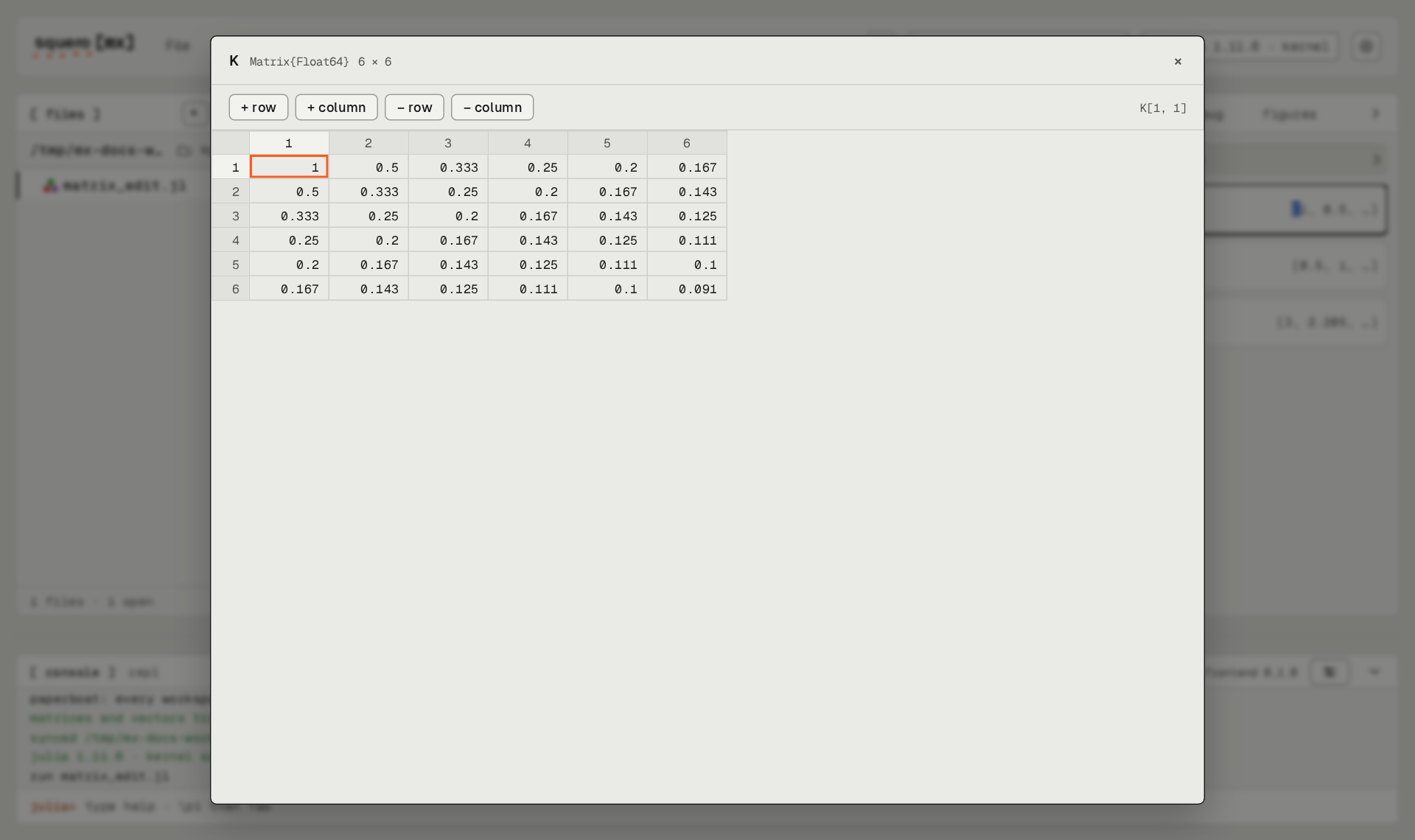
Navigate and edit: move with arrow keys, type a number or press Enter / F2 to edit a cell, press Enter or Tab to commit and advance, or Esc to cancel.
Resize: use + row, + column, − row, and − column to change dimensions.
Spreadsheet paste: paste a rectangular block copied from Excel, LibreOffice Calc, or Google Sheets; it fills from the active cell and grows the matrix if needed.
Every edit updates the live binding in the Julia kernel right away.
Importing and exporting data#
Choose File ▸ Import data… or drag and drop a file onto the workspace pane. A preview dialog lets you inspect variables and resolve name conflicts before loading:
.csv,.tsv,.txt,.dat: delimiter (comma, tab, semicolon, or whitespace) is detected automatically. A leading row of names creates one vector per column (non-numeric text columns are listed and skipped); headerless files load as a single matrix..xlsx: imports every worksheet; formula cells load with their cached values..mat: reads MATLAB v4, v6, and compressed v7 files. (v7.3 files use HDF5—re-save withsave(..., "-v7")in MATLAB/Octave to import.).json: numbers, arrays, arrays of rows, or arrays of objects such as[{"t": 0, "y": 1}, ...].
To export the current workspace back to MATLAB or Octave, choose File ▸ Export workspace (.mat)…, which writes a MAT v4 file containing numeric scalars, vectors, and matrices.
Automatic Paperboat variable broadcast#
Whenever one or more Paperboat stations are running (shown in the top bar as
paperboat · N attached), MX automatically broadcasts workspace changes via variables.set:
Scalars are sent as Paperboat numbers.
Vectors and matrices are sent as Paperboat
matrixvariables (vectors as column matrices) up to 4096 elements.Arrays larger than 4096 elements are not truncated or sampled silently: MX sends a diagnostic note with the shape and limit, suggesting you bind a smaller slice (such as
B[1:10, 1:10]).Functions and non-numeric Julia objects stay in MX and are not broadcast.